
HTTPS and sign-in for Jellyfin, Immich, Home Assistant and Vaultwarden
These four apps share traits: you use them in a browser, they also have phone or TV apps, and they all use WebSocket. Reverse proxying them over HTTPS with Gately is easy. The hard parts are two: the app must trust the proxy to see the visitor's real IP, and "login" must not lock the apps out. Each app gets its own section below, and the sign-in options come last.
When to use this, and what you need
- The app already runs on your network and you know its address and port.
- You have a domain and a certificate that covers it, ideally a wildcard certificate.
- Port 443 of Gately is reachable from outside: see Reach a NAS without a public IPv4 address or Run everything on one port 443.
Common steps
The Gately side is the same for all four apps:
- Open "Web → Web Services". If there is no listener yet, click "Add listener", port
443, HTTPS on. - On the listener's card click "Add site": enter the app's domain under "Domains", choose "Reverse proxy" as the type, and the app's LAN address under "Backend addresses" (default ports below).
- Under "Options" keep "Add X-Forwarded-*" ticked (it is on by default). Gately writes the visitor's real IP, the original scheme and the domain into request headers.
- Click "Save".
Worth knowing:
- WebSocket works automatically. There is no
UpgradeorConnectionheader to write as in nginx. - Gately does not limit upload size and does not buffer the whole request body to disk. What can block large files is the WAF's body inspection; see the Immich section.
- Timeouts. The backend "wait for response headers" timeout is unlimited by default, and the visitor timeouts only count a single stalled read or write, so steady large transfers and long-lived connections are unaffected. See Web Services · Backend timeouts.
| App and default backend address | What to do in the app |
|---|---|
Jellyfinhttp://192.168.1.20:8096 | Add Gately's address to "Known proxies" |
Immichhttp://192.168.1.21:2283 | Set IMMICH_TRUSTED_PROXIES, relax the WAF for large files |
Home Assistanthttp://192.168.1.22:8123 | Trust X-Forwarded-For and list the trusted proxy, or it answers 400 |
Vaultwardenhttp://192.168.1.23:80 | Set DOMAIN to the https address |
The IPs are examples.
Jellyfin
Backend: http://<Jellyfin address>:8096, with a domain such as jellyfin.example.com.
Let Jellyfin see the real IP. In Jellyfin's admin Dashboard under "Networking", put the address Gately uses to reach Jellyfin into "Known proxies" (IPs and CIDR are accepted), save, and restart Jellyfin. Since 10.10.7 Jellyfin trusts X-Forwarded-For only from known proxies, so without this every visitor appears as the proxy's address. If Gately and Jellyfin run on the same machine and Jellyfin is on the host network, enter 127.0.0.1. For Jellyfin in a bridge-network container, enter the source address it sees, usually the Docker bridge address such as 172.17.0.1.
WebSocket. Jellyfin's remote control and SyncPlay rely on WebSocket, which Gately supports automatically.
Phone and TV apps. They sign in with Jellyfin's own accounts. Do not enable web auth or basic auth on this site or the apps cannot connect. For extra protection use IP access control or the country filter (see "How to add sign-in" below).
Immich
Backend: http://<Immich address>:2283. Immich must be served at the root of a domain, not under a sub-path such as /immich.
Let Immich see the real IP. Set the environment variable IMMICH_TRUSTED_PROXIES on the immich-server container to Gately's address (several addresses separated by commas), then recreate the container (docker compose up -d; a plain restart does not pick up new environment variables).
Large photo and video uploads. Immich uploads big files when it backs up your library. Gately itself sets no limit, so only two things matter:
- If the site has no WAF attached, there is nothing to do.
- If it has a WAF, the WAF inspects request bodies only up to 12.5 MB by default and answers 413 above that. Create a separate WAF instance for Immich ("Security → WAF Firewall" → "Add instance"), set "Over the limit" to "Inspect the first part only" under "Request body inspection", raise the "Inspection limit" if needed, and select the instance as the site's "WAF instance". Alternatively add the upload endpoint
/api/assetsunder "Paths without body inspection"; headers, URL and parameters are still inspected. Start in "Detect only" mode, read the log for false positives, then switch to "Block".
Timeouts. Very large videos take a long time to upload; Gately's defaults do not interrupt an upload that keeps sending data. If you set a "wait for response headers" timeout on the site's "Traffic" tab, make it 600 seconds or more.
Mobile app. The app signs in with the server address and an Immich account. Do not enable web auth on this site.
Home Assistant
Backend: http://<HA address>:8123 (use whatever port your Home Assistant listens on).
It must trust the proxy, or it answers 400. A reverse proxy adds X-Forwarded-For, and Home Assistant refuses such requests from a proxy it does not trust; the page just shows 400: Bad Request.
Home Assistant 2026.8 and newer: under "Settings → System → Network", in the "HTTP server" section, turn on "Trust X-Forwarded-For" and add Gately's address or network to "Trusted proxies".
Older versions: set this in
configuration.yamland restart:yamlhttp: use_x_forwarded_for: true trusted_proxies: - 192.168.1.0/24 # the address or network Gately runs on, as a network address
WebSocket. The Home Assistant frontend and apps talk over /api/websocket, which Gately supports automatically.
Banning failed logins. Home Assistant logs failed sign-ins, and once it trusts the proxy it logs the visitor's real IP. In "Intrusion Prevention" click "From template" and choose "Home Assistant". It reads the log of a Docker container named homeassistant (connect Docker in Gately's Docker module and turn on Home Assistant's http logging) and bans an IP after repeated failures. Change the rule's target if your container has another name.
Phone app. The Companion app talks to Home Assistant with its own token. Do not enable web auth or basic auth on this site.
Vaultwarden
Backend: http://<Vaultwarden address>:80 (use the host port if the container's port is mapped).
Set DOMAIN. Give Vaultwarden the environment variable DOMAIN=https://vault.example.com. Attachments, email links and WebAuthn depend on it; Vaultwarden has to know it is served over https.
Real IP. Vaultwarden reads the visitor address from X-Real-IP by default. Gately writes that header while "Add X-Forwarded-*" is on, so nothing more is needed.
WebSocket. Live sync uses the same port as the main service, and Gately supports it automatically. The separate port 3012 older versions used does not need forwarding.
Protect the admin page. The web vault and every client use the API; the admin page /admin is a separate layer. Put Gately's sign-in on /admin alone and leave the rest public, so browser extensions and mobile apps are unaffected:
- On the site's "Security" tab tick "Web auth" under "Authentication" and add
username:passwordunder "Users" (or tick "Use shared users"). - Tick the option under "Authentication scope": "Require authentication only for paths marked "Required" below; all other paths are public".
- Under "Path rules" click "Add rule", enter the prefix
/adminand choose "Authentication required". - Save.
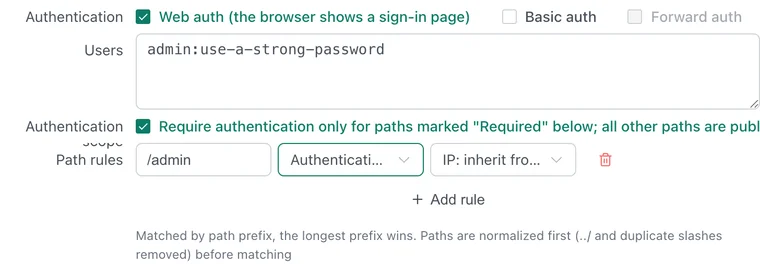
Opening /admin now shows Gately's sign-in page first, and only then Vaultwarden's own admin token page. Other paths are unchanged.
Banning failed logins. "Intrusion Prevention" → "From template" → "Vaultwarden" reads password and two-step failures from the log of a container named vaultwarden and bans by real IP.
How to add sign-in, and what to do when web auth blocks the apps
Web authentication (Gately's sign-in page) suits services used only in a browser. Each of the four apps has its own apps, and those do not render Gately's sign-in page. Basic auth needs the Authorization header and most apps have no prompt for it. So do not turn on either one for the whole site. These options work instead:
| Option | How, and the effect on apps |
|---|---|
| Rely on the app's own accounts | The app has its own sign-in and two-factor; add HTTPS, WAF and intrusion prevention around it. Apps are unaffected; the simplest choice |
| Open specific paths | Turn on web auth, tick "Authentication scope", and mark only admin paths "Authentication required" (as in the Vaultwarden section). The API paths the apps use stay public |
| IP allowlist, country filter | On the site's "Security" tab choose "Allowlist" under "IP access control", or "Allow only" under "Country filter", and set "When denied" to "Close connection". Transparent to apps; phone IPs change on mobile networks, so allowlists suit fixed egress addresses |
| Release after sign-in | An entry site signs visitors in with web auth, then adds their IP to a Port Knocking rule's grant list; the app sites use "Knock admission". After one sign-in every app behind the same egress IP works; grants last 6 hours by default |
| Shared users and Passkeys | Manage accounts under "Auth users", turn on TOTP and Passkey sign-in so the browser page uses fingerprint or face. Applies only to the sign-in page in a browser |
| OIDC single sign-on | When the app supports OIDC / OAuth itself, Gately acts as the identity provider; see OIDC single sign-on. Whether its mobile app can use it depends on the app |
The details and limits of "Release after sign-in" and "Knock admission" (private and carrier-grade NAT addresses are never released, and so on) are in Web Services · Knock admission and release after sign-in.
Verify
# Valid certificate, HTTP/2 negotiated
curl -I https://jellyfin.example.com/

# Home Assistant: the app's page, not a 400
curl -I https://ha.example.com/- Sign in to the app in a browser and check in the developer tools that the WebSocket connection is open (status 101).
- The app's access log, or "Connections" on the Gately site card, shows the visitor's real IP, not Gately's address.
- Vaultwarden:
/and/api/…work directly while/adminshows the sign-in page first. - Sign in once with the mobile app and sync.
Troubleshooting
The browser shows 400 or 502. Home Assistant answers 400 when it does not trust the proxy. A wrong backend address, or a backend Gately cannot reach (with Docker use --network host or a routable address), gives 502.
Every visitor shows the same IP in the app. The app does not trust Gately's address. Set "Known proxies", "Trusted proxies" or IMMICH_TRUSTED_PROXIES as described in each section.
An Immich upload fails halfway with 413. That is the WAF's body inspection limit; adjust it as in the Immich section.
Sign-in loops or links turn into http. The app does not know it is behind https. Keep "Add X-Forwarded-*" on, and check DOMAIN for Vaultwarden.
WebSocket does not connect. If another reverse proxy or a CDN sits in front of Gately, make sure it allows WebSocket as well.
Related
- Web Services: authentication, access control, path rules, WAF and timeouts.
- WAF Firewall: body inspection and sites that take large uploads.
- Intrusion Prevention: spotting brute force in logs.
- Port Knocking.